How to Request a Tuition Payment in the A to Z App
1. Log In to A to Z
Log in to A to Z:
https://atoz.amazon.work/career_choice/
2. Open Career Choice
Under Resources, select All Resources, then choose Career Choice.
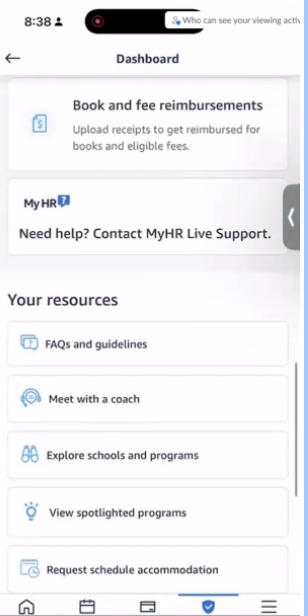
Select Explore Schools and Programs.
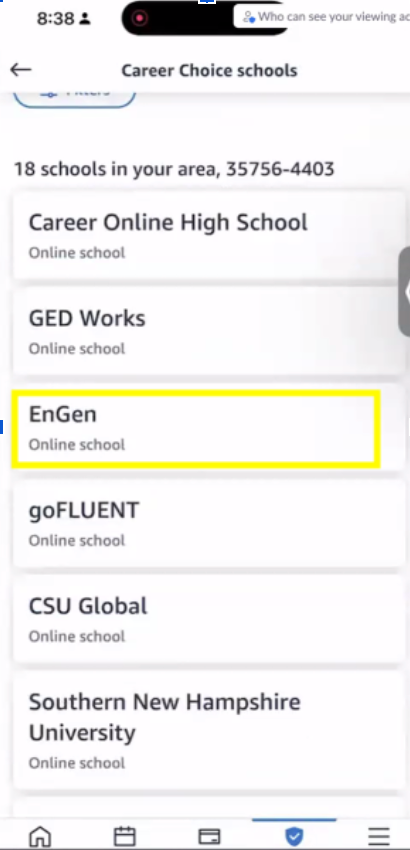
Select EnGen.
3. Request Payment
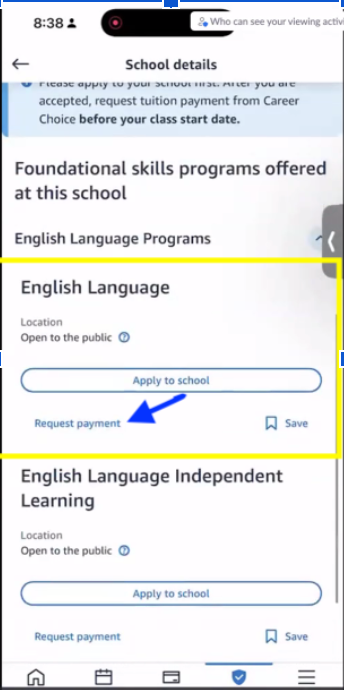
Under English Language, select Request Payment.
You will see a message about the English Proficiency Assessment.
Beginner? Select “Skip”
If you consider yourself a beginner, select Skip to start at the beginner level.
Not a Beginner? Take the Assessment
Select Continue to Assessment to determine your English level.
Your assessment results will be available within 24 hours. You must wait for your assessment results before submitting your payment request.
If you skip the assessment, continue to the next step.
4. Select Your Program Dates
Start Date: Select your preferred start date.
End Date: Select a date 3 months after your start date.
5. Enter Your Student ID
Enter your Student ID (optional). Your Student ID is your email address.
Select Continue.
6. Complete the E-Sign Release
Open the document and select Continue, then Start.
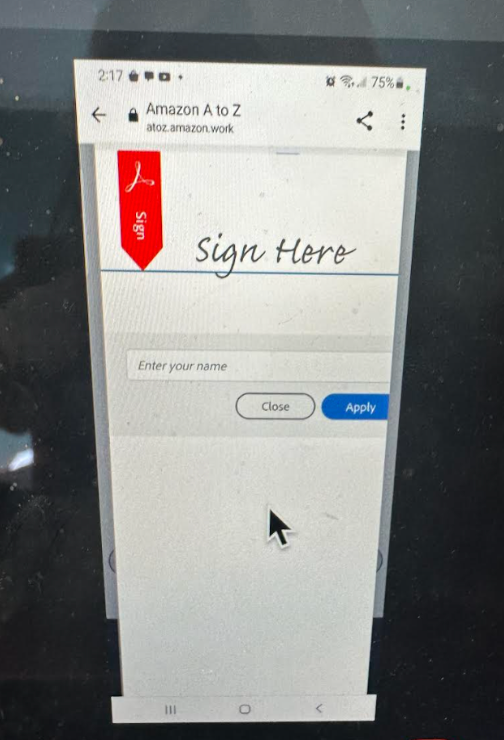
Select Tap to Sign, enter your name, and select Apply.
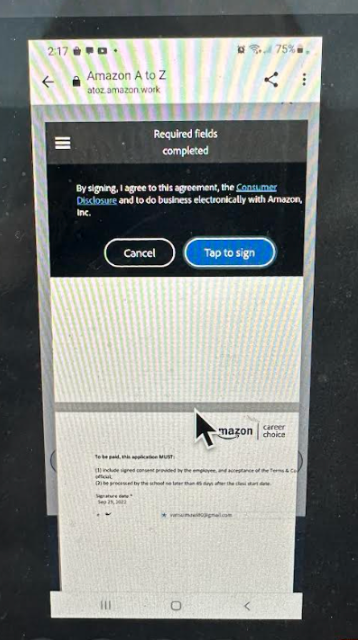
Select Finish, then select Tap to Sign one final time.
7. Submit Your Request
Select Request Payment to complete the process.
Screenshots of each step are provided on the following pages.
The following pages include screenshots of the process.
Pre-enrollment - Amazon Payment Request Process
In the app
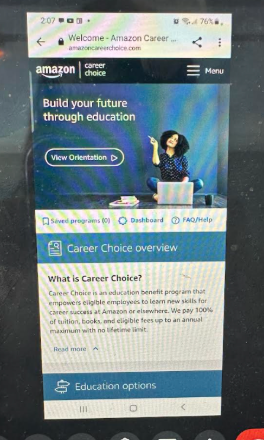
Log in to Amazon A to Z:
2. Tap Explore Schools and Programs:
3. Select "EnGen":
4. Under “English Language,” click on “Request Payment”:
5. Confirm “Your program dates”:
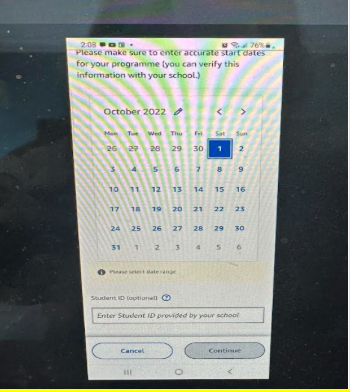
6. Enter Student ID (your email address), and click “Continue”.
7. Click on “E-sign Release”:
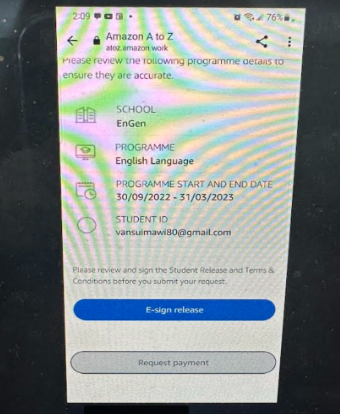
8. When you enter the document, click “Continue”, then "Start".
9. You must electronically sign where it says "Tap to sign" by typing in your name and providing a digital signature. After that click on "Apply":
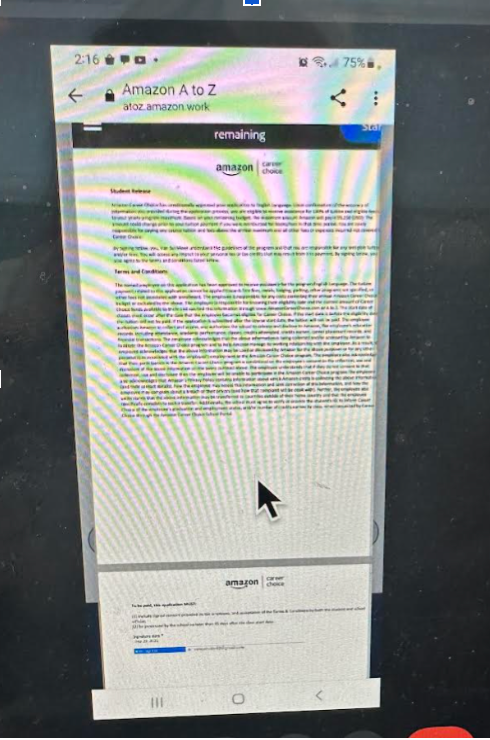
10. After that, click “Finish” and then click on “Tap to sign”:
11. Click on “Request Payment”:
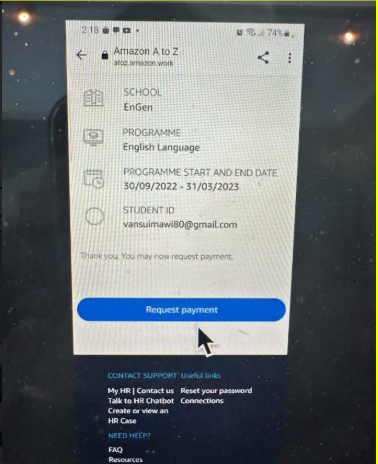
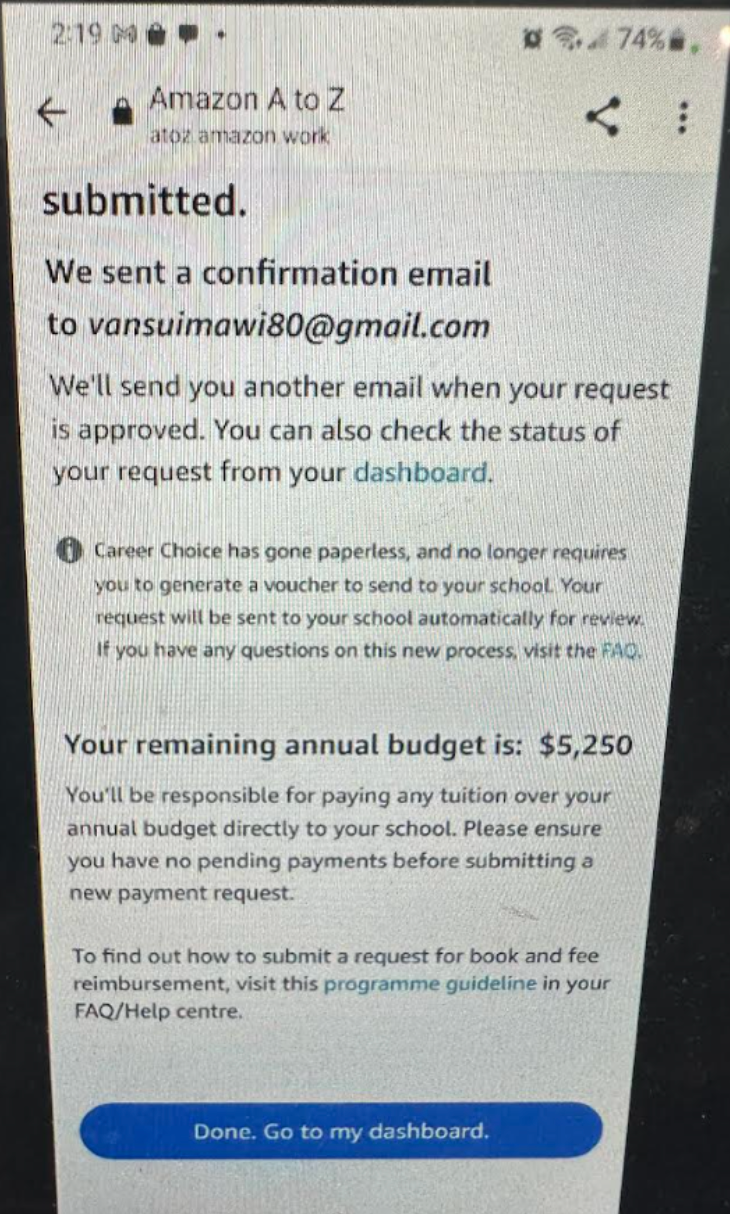
12. You will see your Payment Request confirmation: