Enrolling in English Language Learning (EnGen)
Table of Contents:
1. Submit your application on Bright Horizons EdAssist.
Log in to Bright Horizons EdAssist:
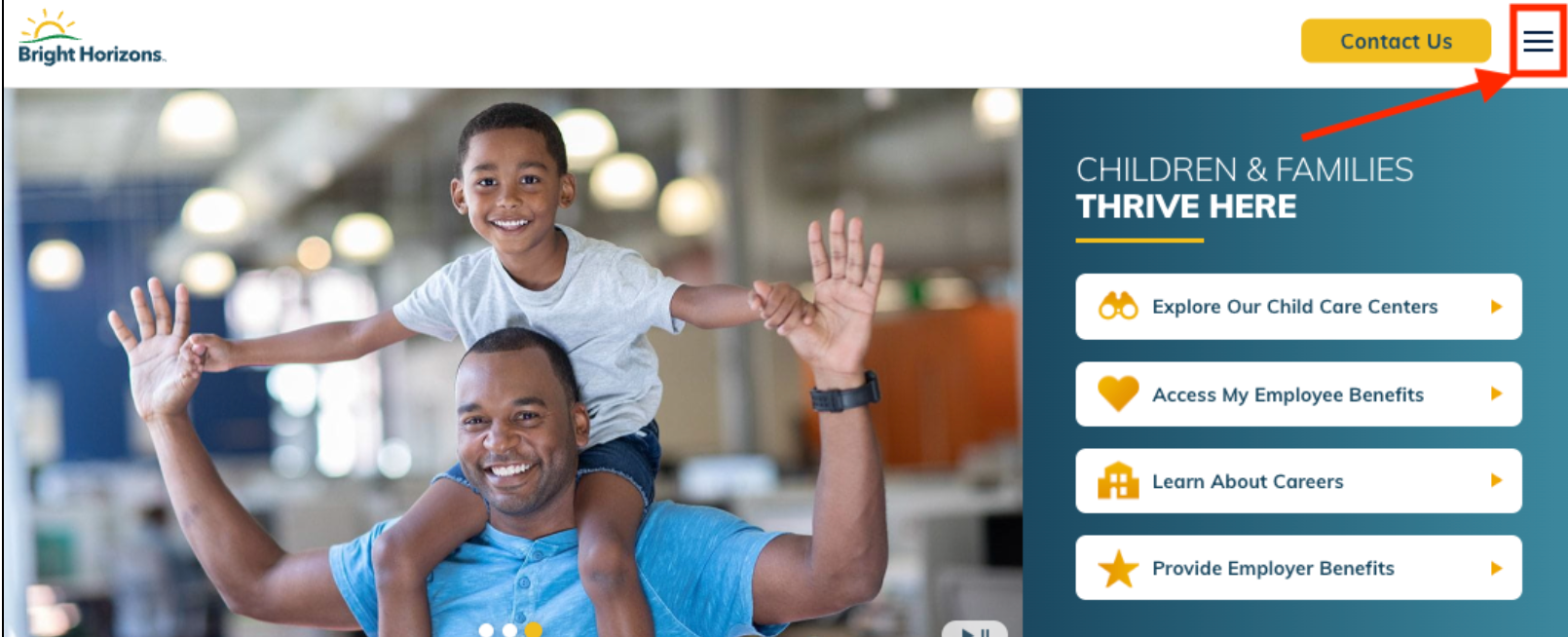
Click on the 3 lines in the top right corner OR click on the LOG IN button if it appears.
NOTE:
Advocate Aurora Health employees – Log in to Bright Horizons EdAssist using this URL instead: https://clients.brighthorizons.com/aah
Atrium Health employees – Log in to Bright Horizons EdAssist using this URL instead: https://atriumhealth.edassist.com/
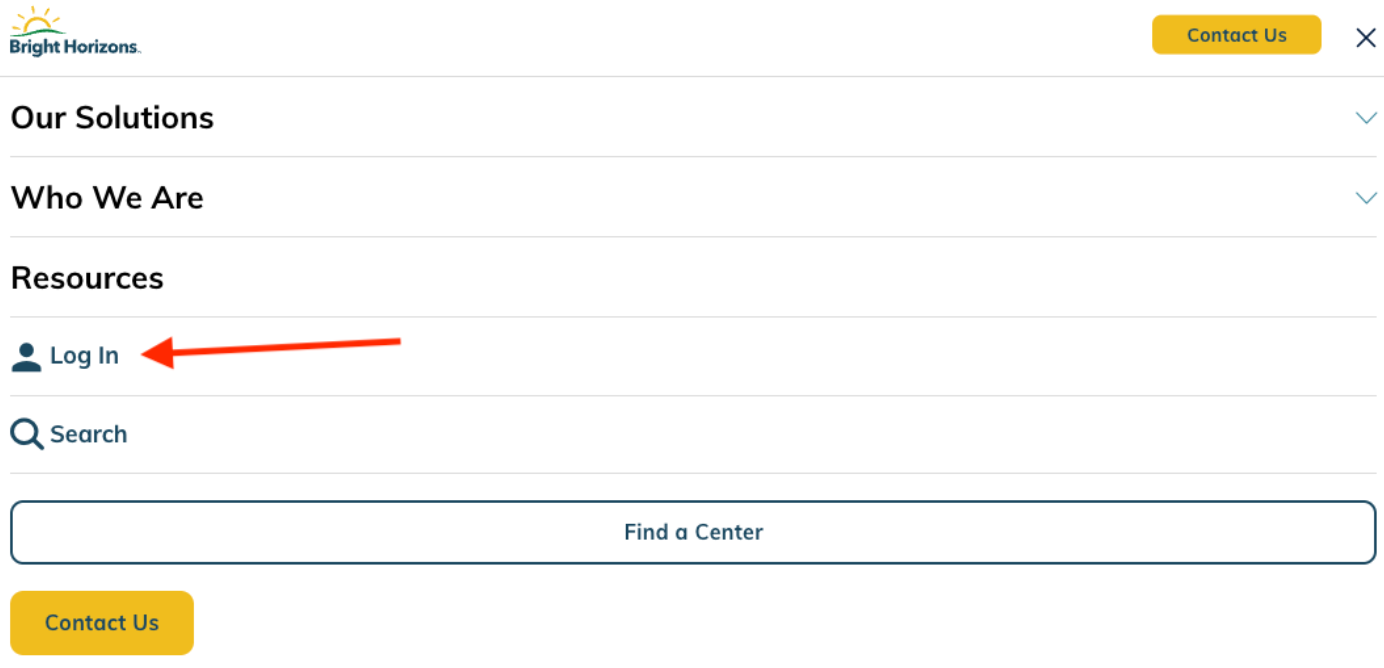
In the menu, click on Log In.
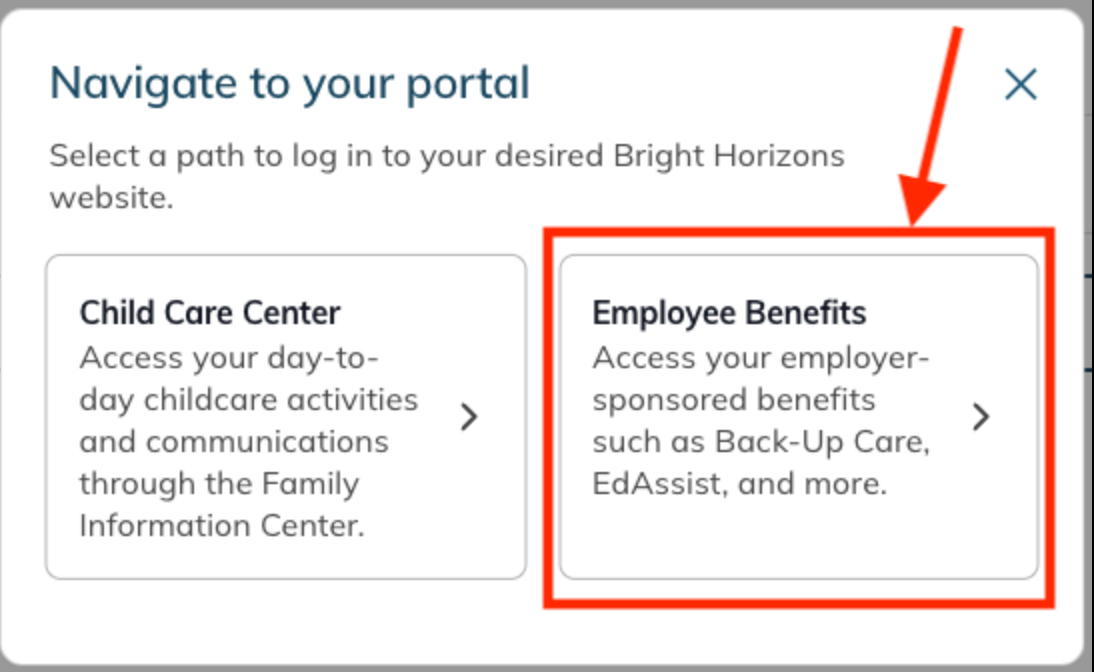
In the pop-up, click on Employee Benefits.
On the log-in screen, search for your employer by typing your employer name in the search box":
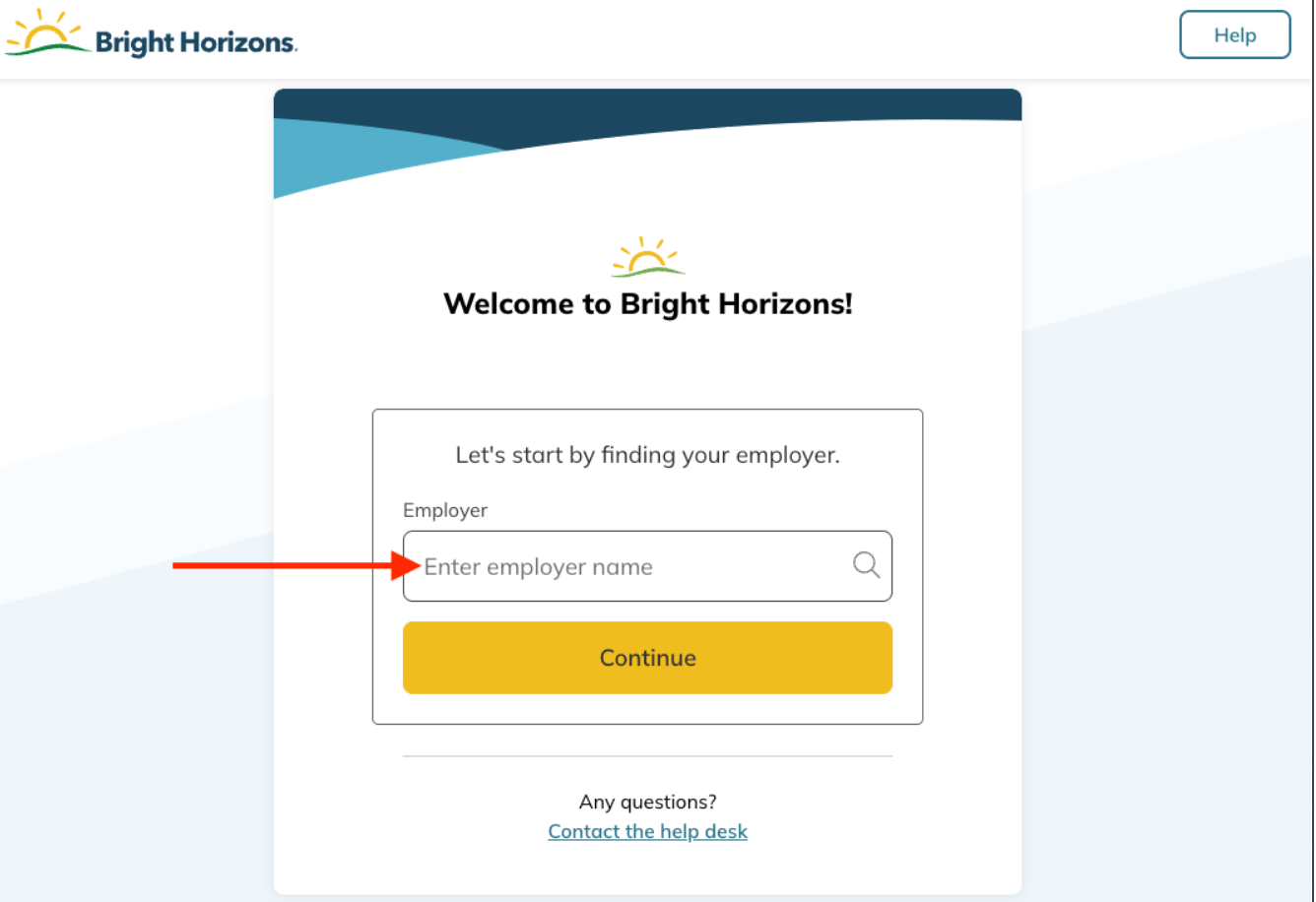
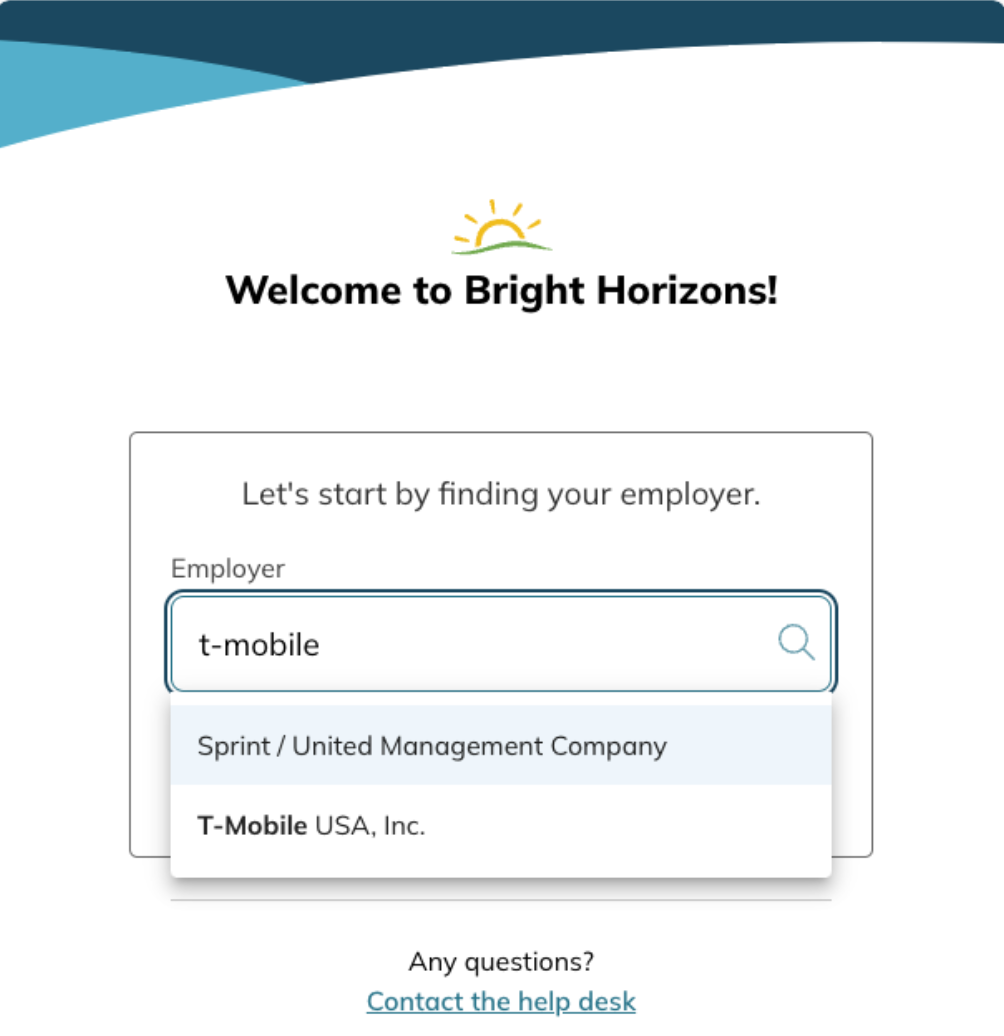
Select your employer from the list. (The image below uses T-Mobile as an example.)
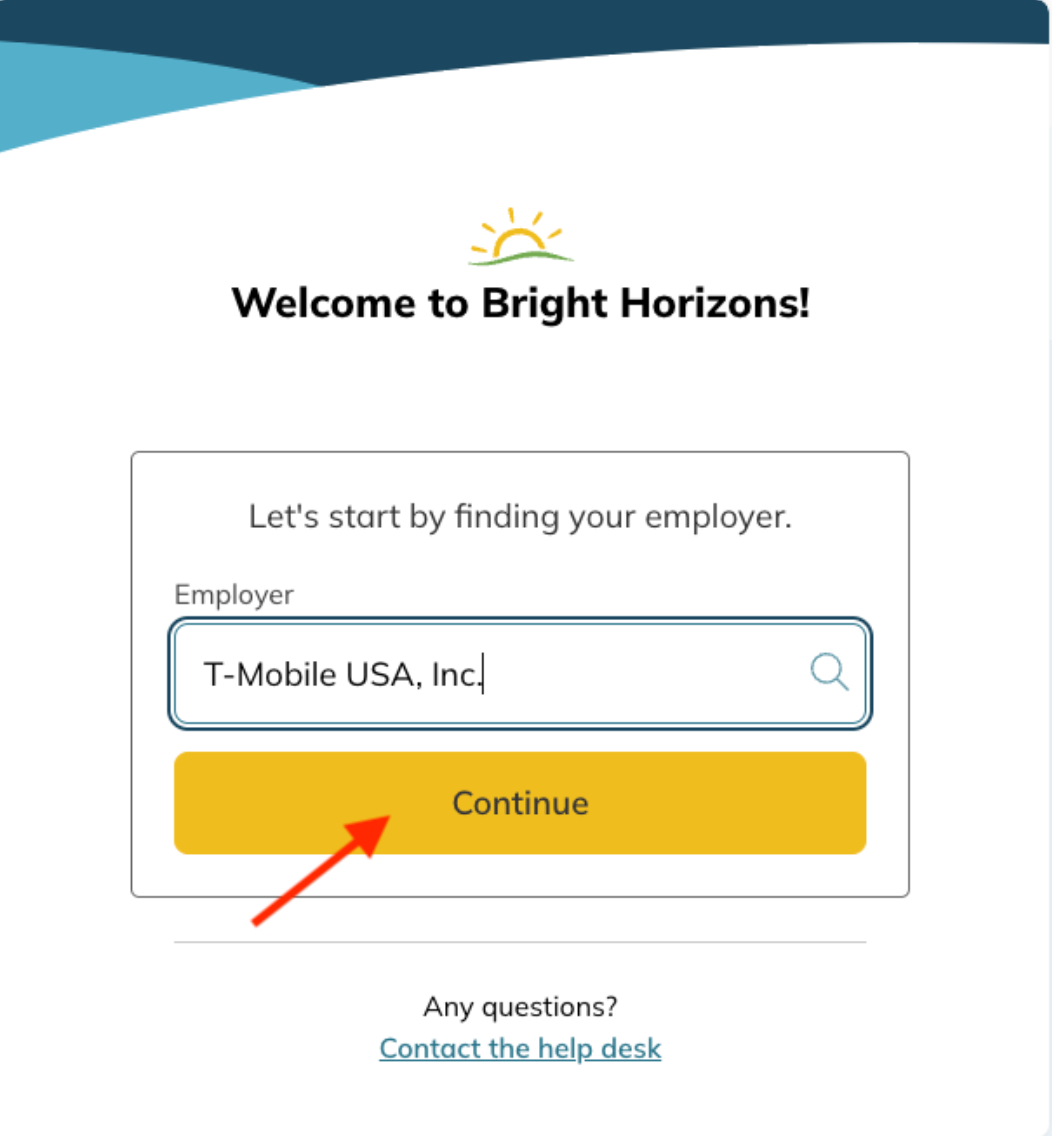
Click Continue.
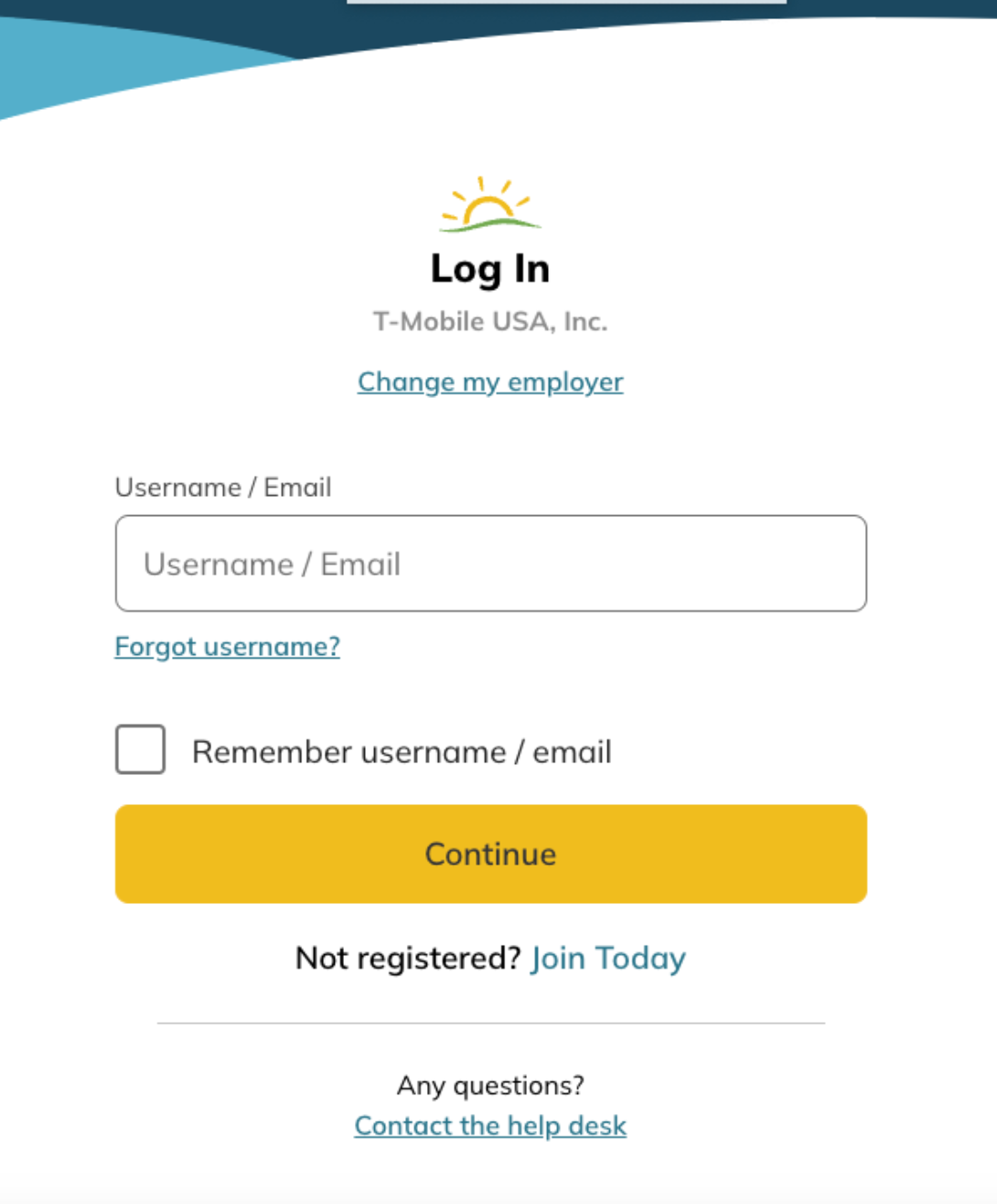
Enter your Username (or email) and click Continue.
On the next screen, enter your Password and click Continue.
If you do not know your password, click on Forgot Password? You will receive an email to reset your password.
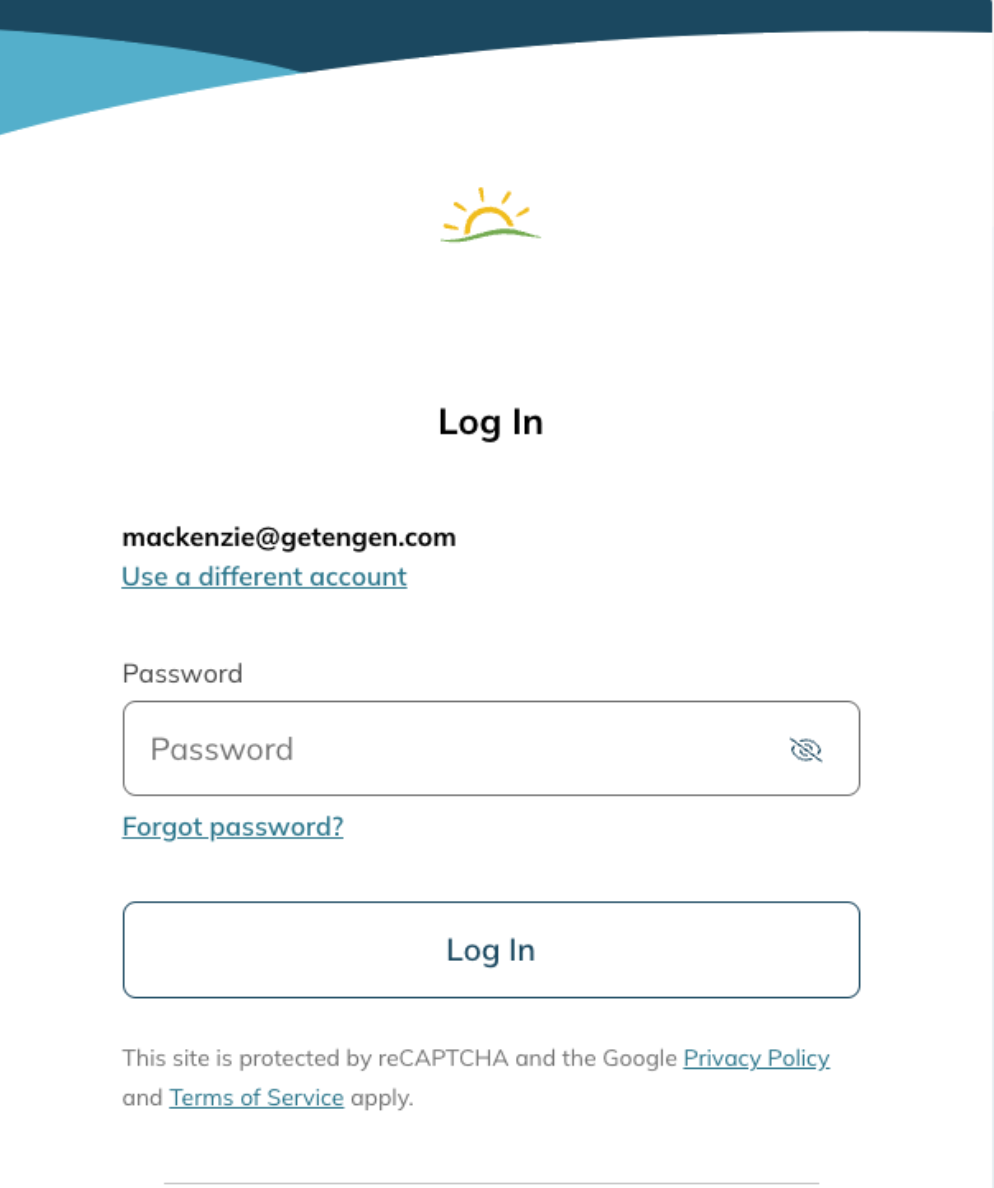
Click Log In.
Start your application:
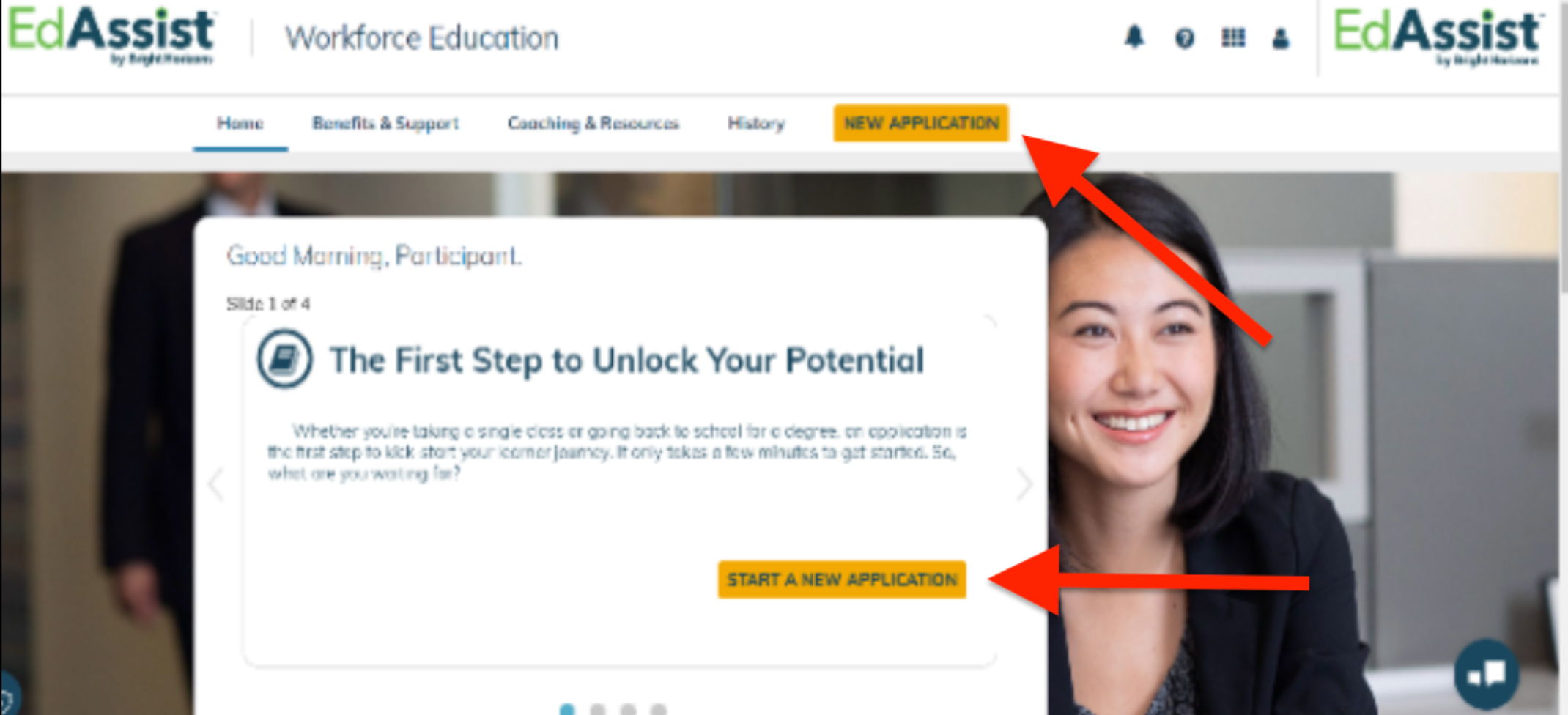
On the dashboard, click NEW APPLICATION or START A NEW APPLICATION.
Step 1: Education Program
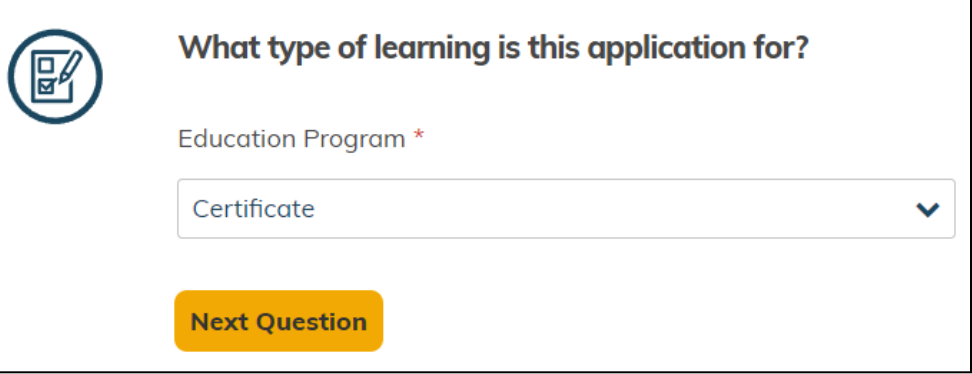
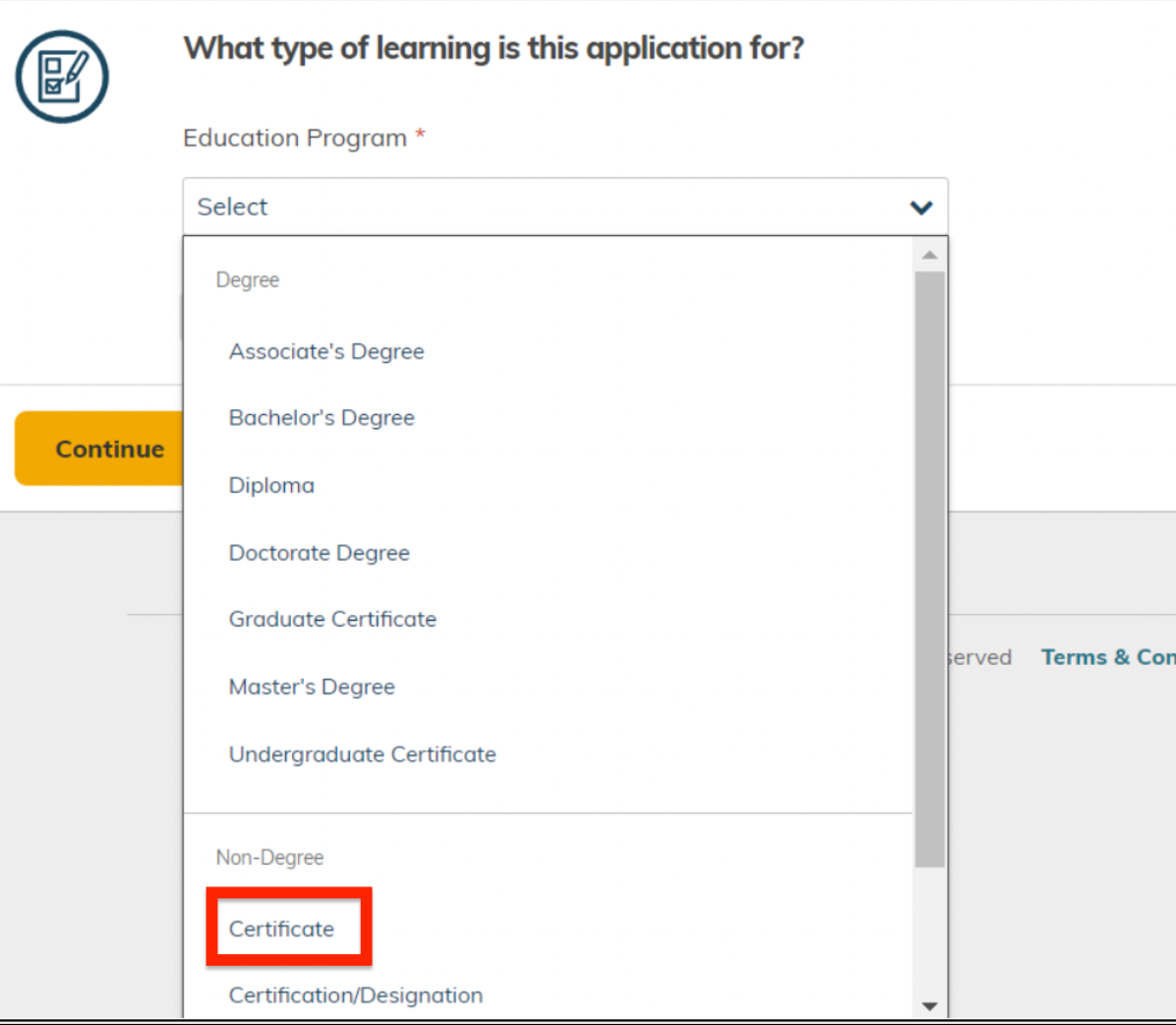
What type of learning is this application for?
Under "Education Program", click on the drop-down menu.
Under "Non-Degree", select Certificate.
Then click on Next Question.
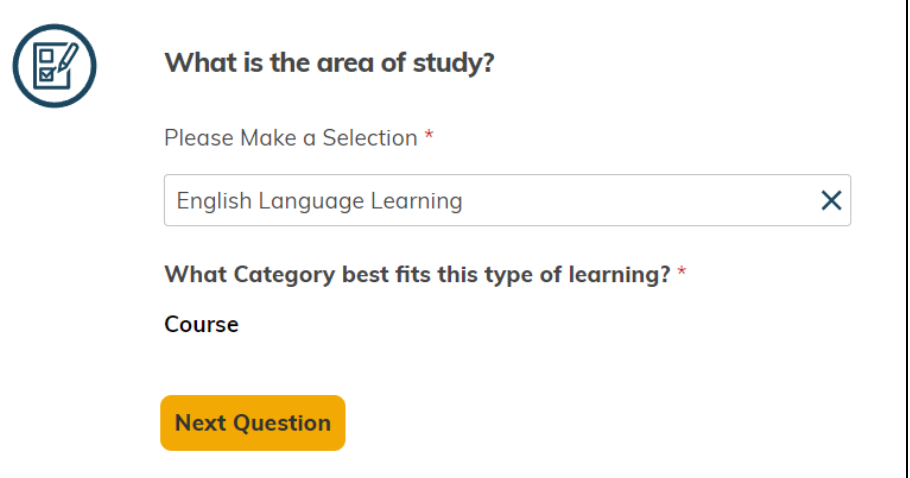
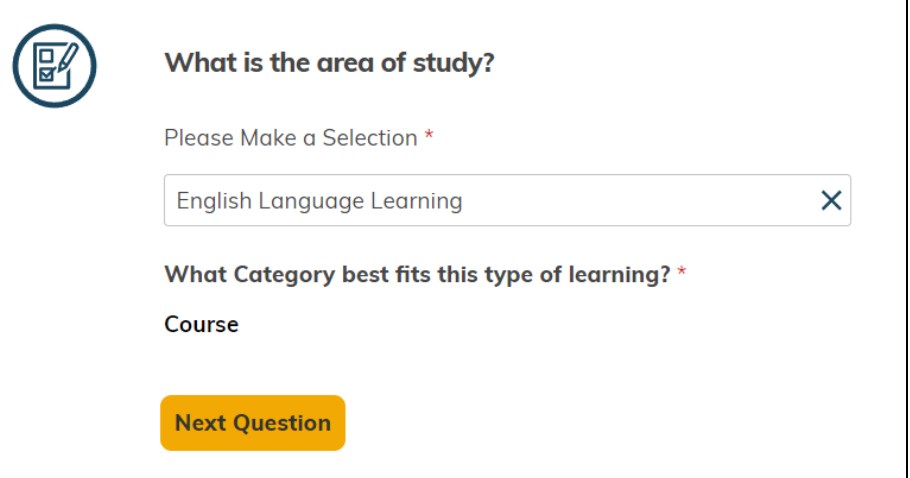
What is the area of study?
In the drop-down menu, select English Language Learning.
Under "What Category best fits this type of learning?", select Course. (NOTE: This field might auto-populate).
Then click on Next Question.
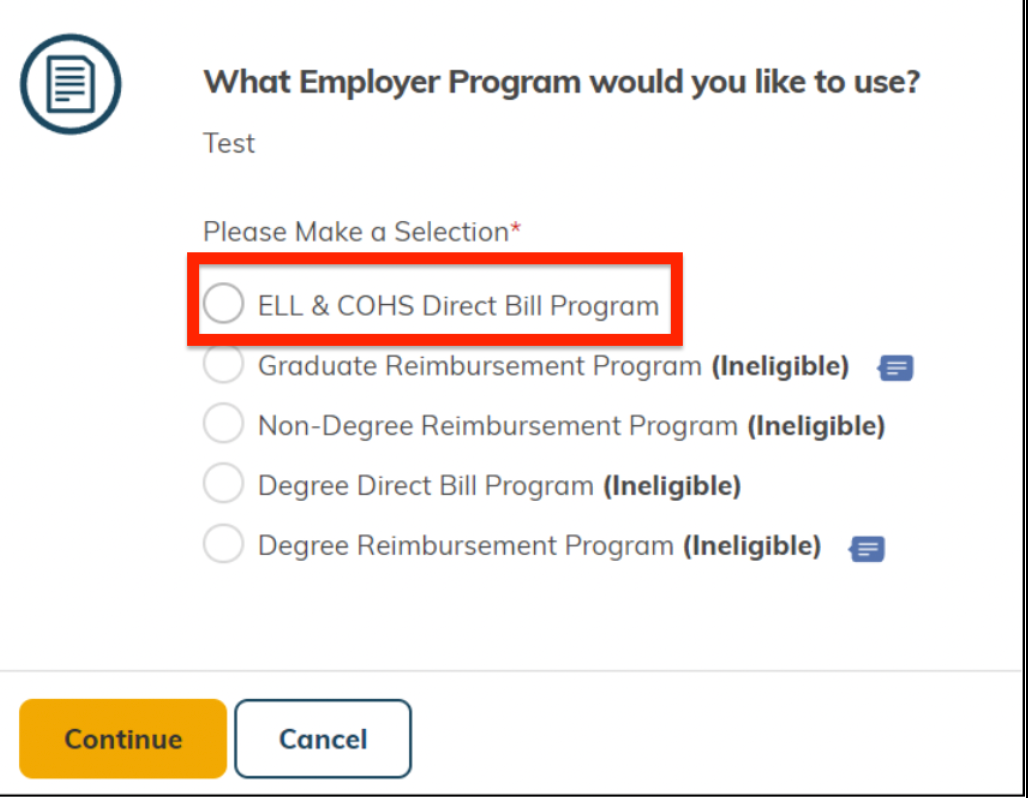
What Employer Program would you like to use?
Select your English program. NOTE: The program name varies by employer. For example, you might see ELL & COHS Direct Bill Program. "ELL" = English Language Learning.
Then click on Continue.
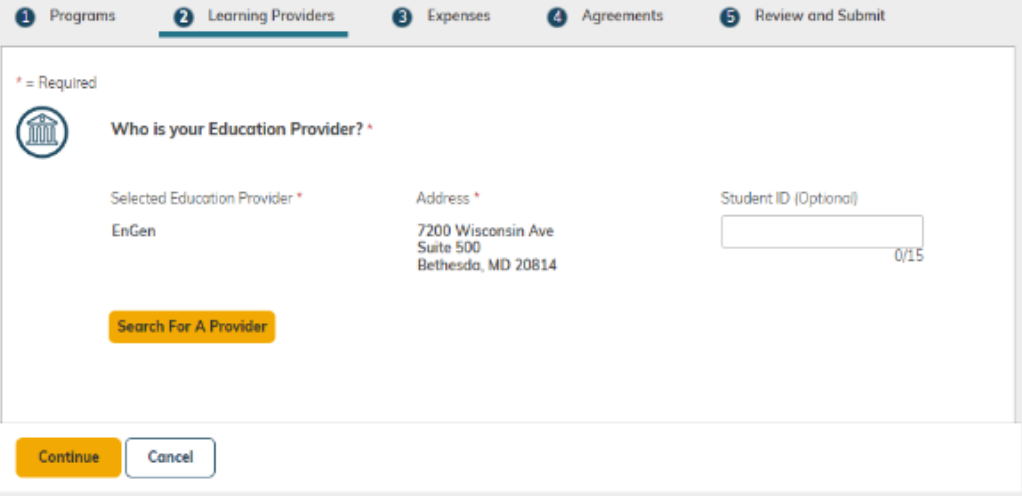
Step 2: Learning Providers
Who is your Education Provider?
Select EnGen. (NOTE: This field might auto-populate).
Then click on Continue.
Step 3: Courses and Expenses
Under "Session Information", enter your planned Session Start Date and Session End Date. (NOTE: The Session End Date should be 6 months after the Session Start Date).
Under "Course & Expense Information", click Add a Course & Related Expense.
You might see instructions for what to enter under "Course Name" and "Course Number". Follow those instructions.
Otherwise, under "Course Name", enter the name of your English course (in English). For example, type English or EnGen or English Language Learning. Under "Course Number", enter "Course 1" if this is your first time using EnGen or "Course 2" if this is your second time using EnGen, etc.
Then click on Continue.
Step 4: Agreements
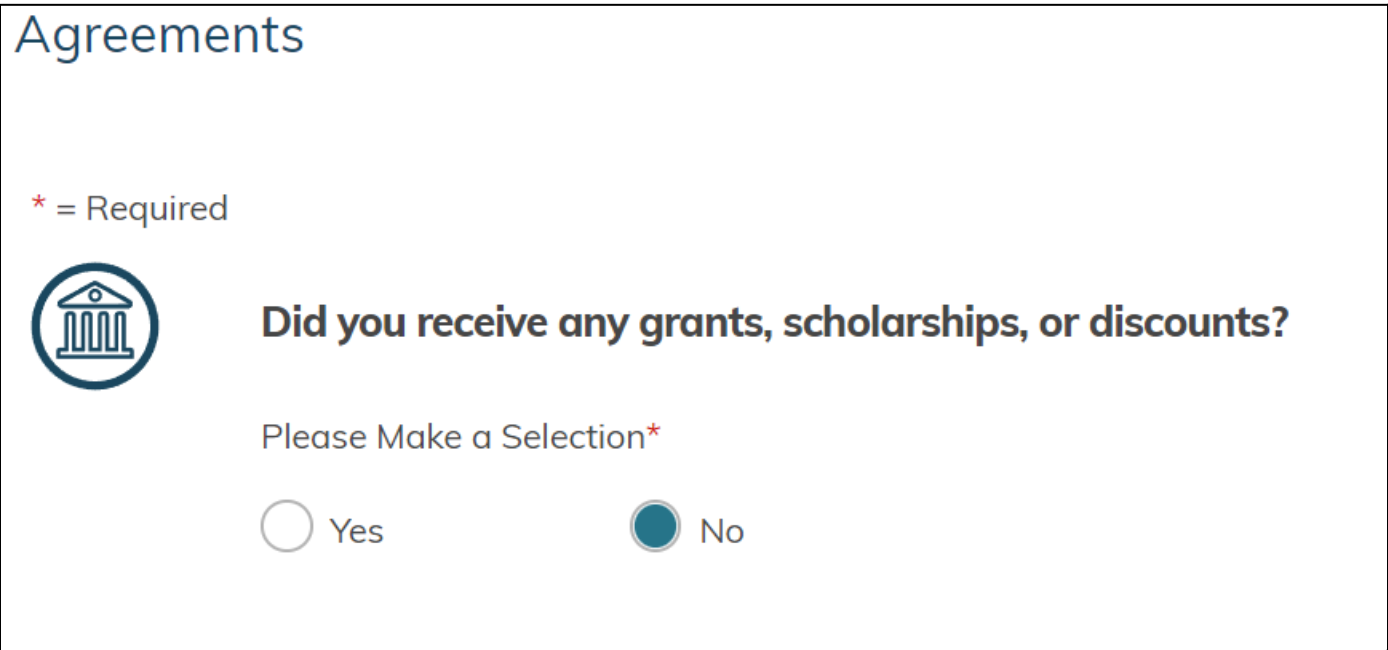
Did you receive any grants, scholarships, or discounts?
Select Yes or No (NOTE: Most people will select No).
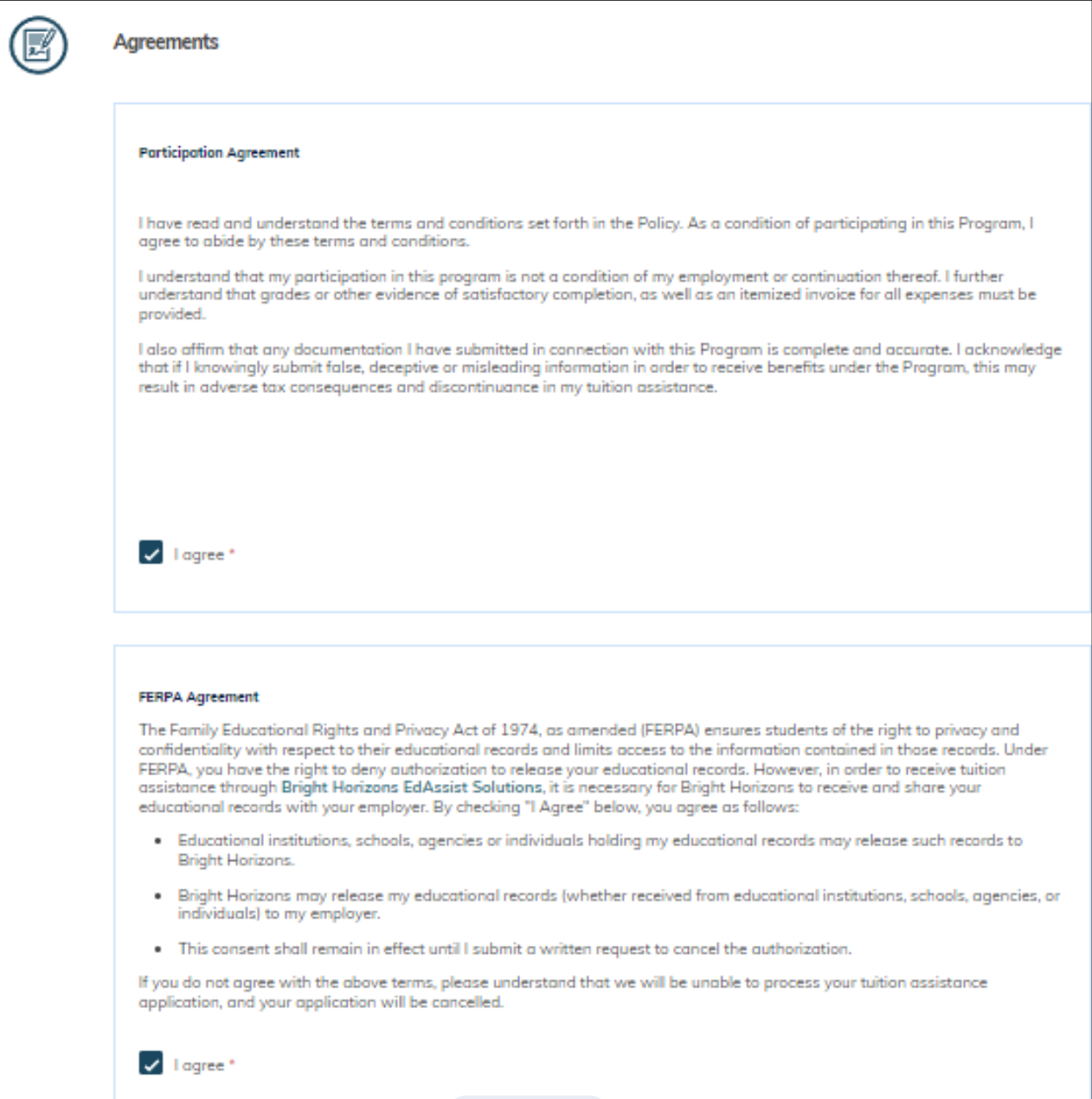
Select I agree after reading each agreement.
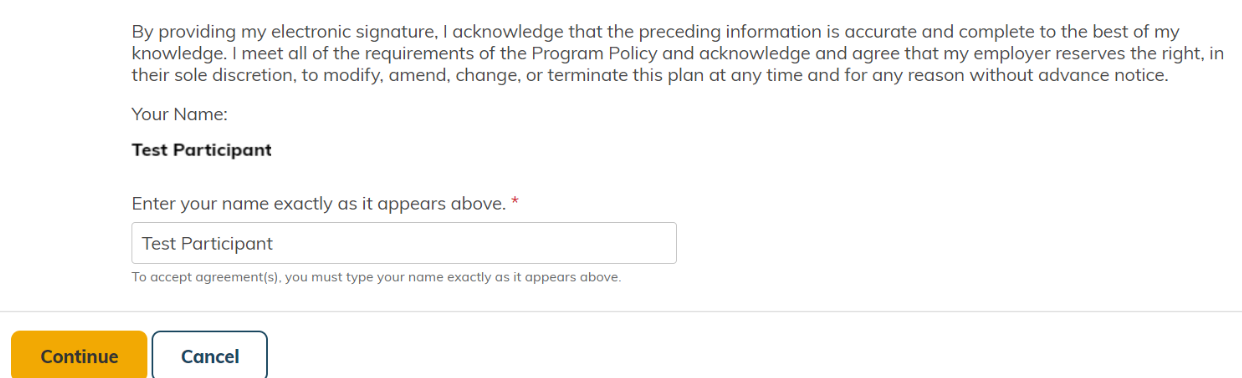
Sign your application. Under "Enter your name exactly as it appears above", type your name.
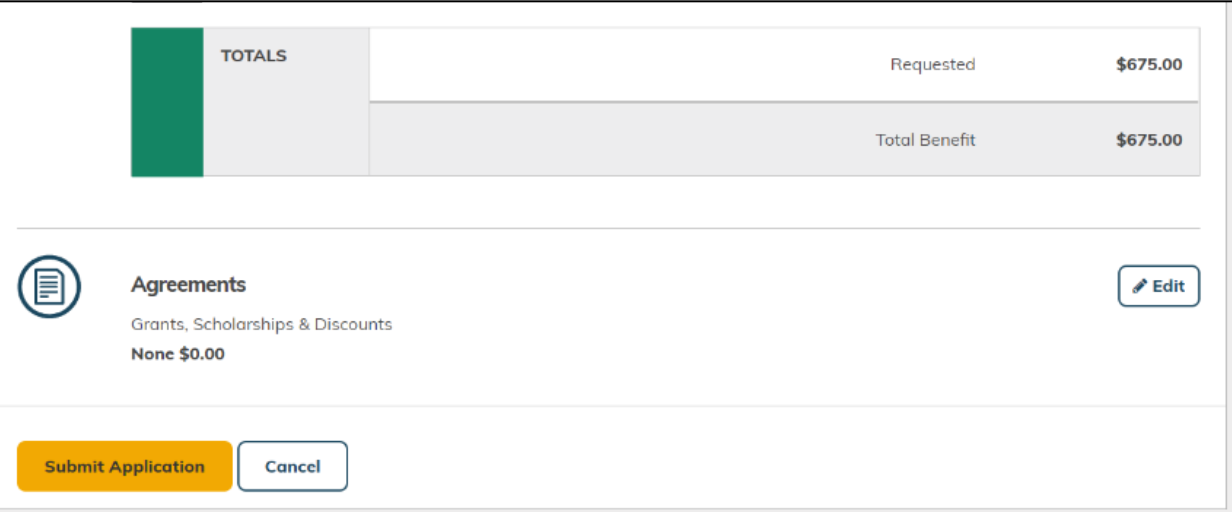
Step 5: Review and Submit
Review your application. To submit your application, click on Submit Application.
Approval
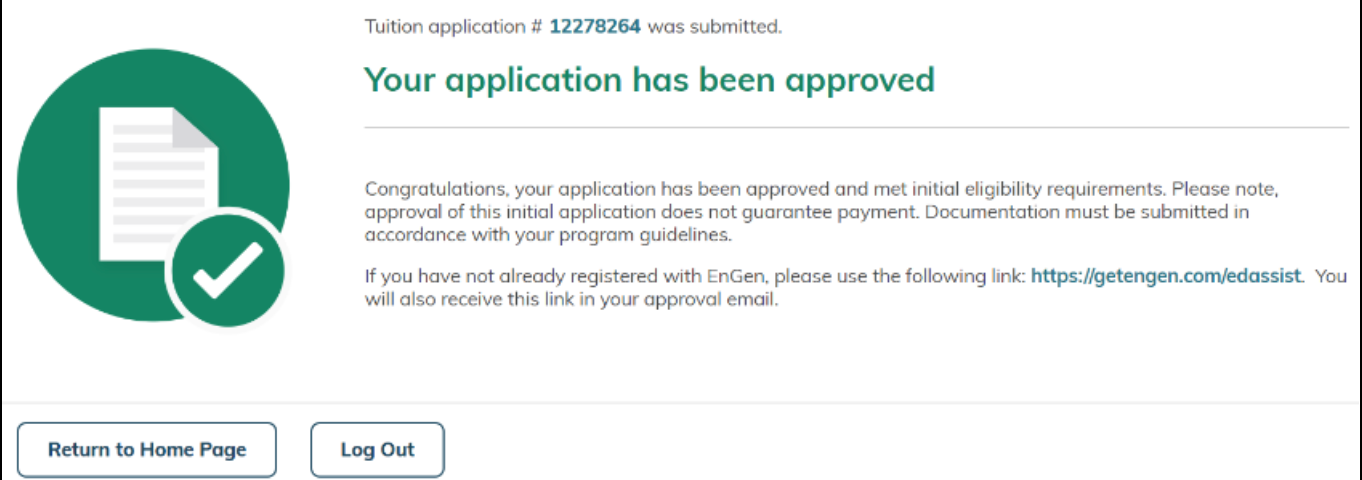
You will receive a message indicating that your application has been approved! Bright Horizons EdAssist will pay for your EnGen program.
2. Contact EnGen:
Fill out EnGen's form in English or Spanish:
Fill out the form in English on this page: https://getengen.com/edassist
Then click Register Now.
OR Fill out the form in Spanish on this page: https://getengen.com/edassist-es
Then click Regístrate ahora.
Speak with an Enrollment Advisor at EnGen:
Call EnGen at +1 (240) 549-5864 or email enroll@getengen.com to learn more about the EnGen program, discuss your goals, and confirm your start date.
3. Start your EnGen program!
In a few days, you will receive an email from EnGen with a button to activate your account.
Before then, learn about EnGen by watching this video in English or this video in Spanish.